Building a Row-by-Row Order Tracker: A Spreadsheet That Behaves Like a Mini-App
Process Design & Automation
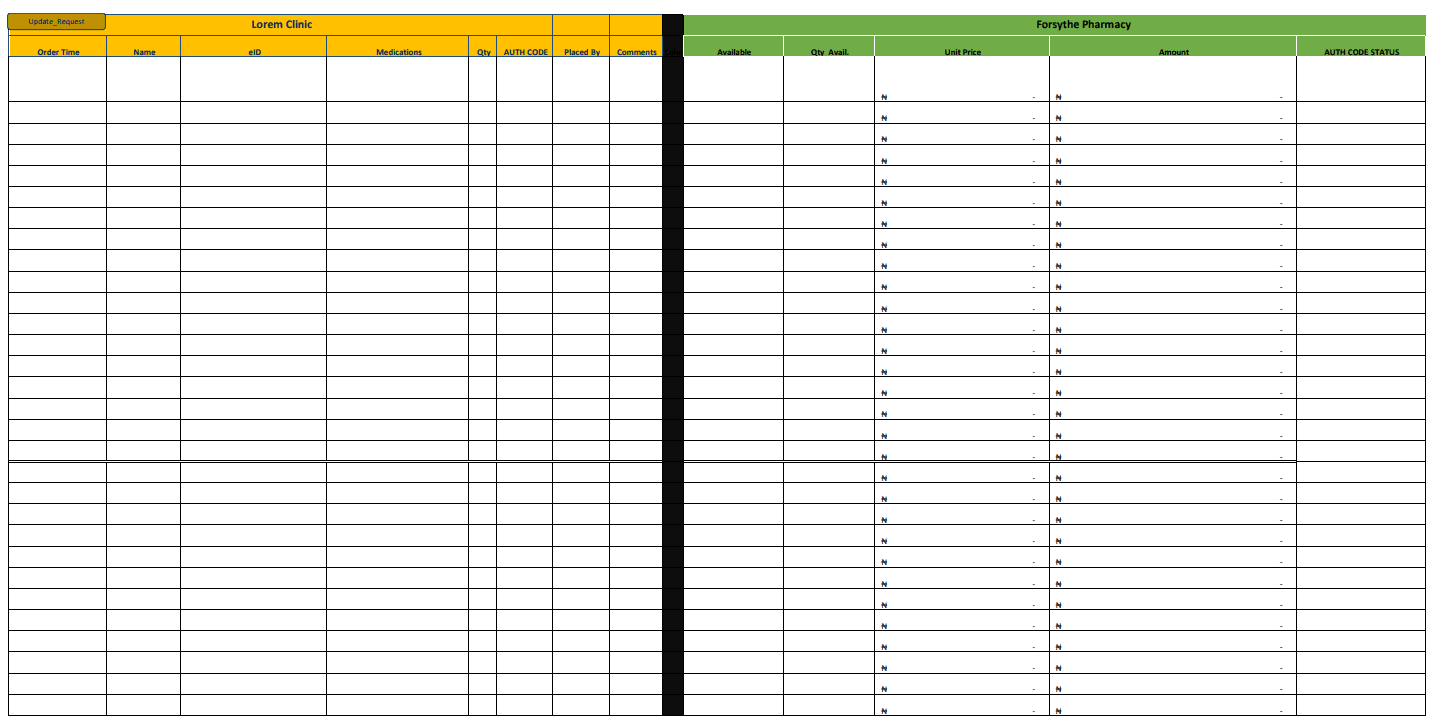
Not every operation can justify a full application software but there is still real, daily chaos that needs attention. Prescriptions were arriving by phone, by note, by memory. Prices were being calculated by hand. Authorization codes were being tracked on scraps of paper & via chat, and nobody could say with certainty which order was waiting on which approval, or which parcel had actually left the building.
The purpose for this tracker was simple: give the intake and dispatch teams one row per order, where entering a few basic facts (a name, a drug, a quantity) would quietly trigger everything else the business needed to know: price, authorization status, delivery address, elapsed time, dispatch status.
A companion piece to this system is a small TypeScript Office Script that stamps a timestamp into a cell the moment a button is clicked this replaces a person having to type the time themselves (and inevitably typing it wrong, or not at all). That script isn't included here, because Office Scripts require a Microsoft 365 hosting tier that not every account has access to. It'll be shared in a separate post. Everything below assumes that button exists, and picks up the moment it's clicked.
This is a deliberately miniaturized of the original tracker, a handful of sample rows standing in for what would normally be a live, growing table. We have just enough sheets to see the thought process behind it and the formulas used/ A few cells still show the seams of that shrinking (a broken reference here, an #REF! there).
Walking Through One Order
1. The clock starts
A partner (a hospital or clinic,here, "Lorem Clinic") opens the sheet and starts a new row. They are to enter every unique order item in a row. This is feasible because most copy sources split rows into excel rows very smoothly.
2. The customer resolves itself
The partner types a Name into Column B. They don't need to know the patient's enrolee ID, the sheet already does, because it's cross-referenced against a standing Customer Details table:
Type a name, and eID fills itself in. The outer IF catches the very first moment the row exists (before a name has even been typed, [@Name] evaluates to 0) and shows a blank space instead of an error; the IFERROR wrapped around the XLOOKUP catches the second failure mode: a name typed that doesn't exist yet in the customer table.
3. The medication line
The partner writes what was actually requested — free text, exactly as prescribed (Carvedilol 75mg daily, Ramipril 5mg, Libre 2 packs, Tamsuson 0.4mg). This is deliberately left as loose text, because a partner scribbling a prescription note doesn't write in catalogue language. Next to it, on the Forsythe Pharmacy side, that loose request gets matched to something the warehouse can actually pull off a shelf — an Available column holding the formal, brand-and-form version (Regcon Holdings Carvedilol Tablet, Watson Labs Ramipril Capsule, Oxford Pharms Tizanidine Hydrochloride Tablet). Every calculation from this point on keys off Available, not the partner's shorthand — because Available is the only version of the drug name that also exists, verbatim, in the price list. Between the two sides sits Column1 — an intentionally empty spacer column, there purely to give the eye a visual break between "what the clinic asked for" and "what the pharmacy is fulfilling." It carries no formula of its own, but it does carry a conditional formatting rule (more on that below) that quietly checks it's actually staying empty.
4. Price finds itself, and then multiplies
Once Available is set, the price doesn't need to be looked up by a person flipping through a drug list:
And the moment a quantity is entered in Qty Avail., the line total follows the same lookup, just multiplied through:
Price x quantity, computed the instant both pieces exist. There is no need to key in. Nothing is rechecked against a price sheet by hand. Both fall back to 0 rather than an error, because 0 is a safe, arithmetic-friendly default for a price that doesn't exist yet. An error here would break the SUMIF used later on the authorization sheet.
5. Prior authorization steps
Some orders need a payer's authorization code before they can be fulfilled. The partner drops the AUTH CODE into its column, and the AUTH CODE STATUS column reports back in plain language what's happening with it:
This one is doing more work than it looks like, and every branch exists to rule out a specific way the row could be incomplete or messy before it commits to actually answering:
This one is doing more work than it looks like, and every branch exists to rule out a specific way the row could be incomplete or messy before it commits to actually answering:
• [@[AUTH CODE]]=0 :nothing typed yet → stay blank.
• AND([@[AUTH CODE]]<>0, [@Available]=0) — a code was typed, but the drug side of the row hasn't even resolved yet → stay blank, because there's nothing to authorize against.
• VALUE(TRIM([@[AUTH CODE]])) = 0 — the TRIM strips stray leading/trailing spaces a partner might paste in, and VALUE forces it to a true number, since auth codes get typed as text but need to be compared as numbers on the verification sheet. If it comes out to 0, treat it as not-yet-entered.
• [@Available] = "NOT AVAILABLE" / "Request Withdrawn" — if the drug can't be fulfilled or the request was pulled, an authorization status is meaningless → stay blank rather than show something misleading.
• The AND(...) "Pending" branch: a real code exists, but it isn't on the verification sheet's list yet → say so explicitly, rather than showing a blank that could be mistaken for "nothing typed."
• The final TRUE branch — everything else has been ruled out, so it's safe to just go get the real status.
6. Where authorization actually gets tracked
The AUTH CODE VERIFICATION sheet (Table5) is where the codes above get resolved. Four things happen there: Pulling in every code that's been used. Rather than someone re-typing every auth code onto this sheet, a single array formula builds the list automatically:
Reading it from the inside out: VSTACK collects every AUTH CODE ever entered on the orders sheet into one column; TRIM(...) <> "" filters out the blanks (orders with no code); VALUE converts what's left to numbers; UNIQUE collapses duplicates (several line items sharing one code shouldn't produce five rows here); SORT puts them in order. One formula, sitting in a single cell, "spills" the whole resulting list downward automatically as new codes appear.
That spilled list isn't used directly, though. It's mirrored into a normal column instead. In fact if you were looking at the sheet, you may not see it before it was colored white and locked. It is a ghost column auto updates itself. The reason for this was that ranges formatted as table don't grow so well with unique. They usually through an error. Below is the formula that mirrors it:
This is a small but deliberate design choice because like I mentioned earlier: a spilled array is awkward to build a proper table row around, so each row in the visible AUTH CODE column simply points at its matching spot in the spill (J3, J4, J5, ...). That gives every other formula on this sheet ( the SUMIF, the quarter check) an ordinary, stable cell to reference instead of a moving array.
Totaling every line under one code. Partners often submit several drugs under a single authorization code. Rather than someone adding those up by hand like was earlier the case, the total follows automatically:
You will see Q1 referenced a lot here. The actual project was actual consisting of 4 Sheets each for each Quarter but for the sake of this showcase, I took out a lot of things.
Every order line tagged with a given code gets summed into one PA TOTAL, so the person approving the authorization sees one number, not five scattered ones.
Recording the actual decision. The AUTH CODE STATUS column on this sheet (Approved, Rejected, Pending) is filled in by hand by whoever is processing the authorization. It is deliberately not a formula. This is the one place in the whole tracker where a human judgment call belongs, and it's exactly the value the order sheet's IFS formula reaches back to read.
You may wonder: If the Authorization sheet has all the codes piling together, how do we know which code comes from what quarter? Working out which quarter a code belongs to took a lot of iterations but one thing that was leveraged is the fact that operationally authorizations increment . So that helps because codes that were issued in a quarter sticker close.
Secondly a helper column was created that all it did was print Q1, Q2, Q3, or Q4 dependingon where it found the auth code.
The logic is straightforward XMATCH checks whether the code exists in each quarter's order table, coercing both sides to text with &"" so a numeric code still matches cleanly, and returns whichever quarter's table claims it first. What's showing here as #REF! is an honest scar from miniaturizing the sheet: in the full tracker, each of those four checks points at a real Q1/Q2/Q3/Q4 orders table; in this MVP, only Q1 exists, so the other three references have nowhere left to point. I've left it visible rather than quietly fixing it, because it's a fair example of what happens to cross-sheet formulas when the sheets they depend on aren't all present.
7. Delivery details attach themselves
While the ID shows on the left side of the sheet, having all enrollee details on the left would have been to crowdy so the dispatch-related details were moved to the end part of the sheet under the dispatch zone. Over there, address and phone number follow the same lookup pattern as the enrolee ID, pulled straight from the customer table the moment a name is typed:
The address formula has an extra outer IF the phone formula doesn't: it's checking for the specific case where the lookup technically "succeeds" but returns 0 (an address field that exists but was left empty in the customer table), and converting that 0 into a clean blank rather than displaying a stray zero on a delivery slip.
8. The order gets an identity and a status
The first three branches are guard rails: no OrderID yet, or the order isn't marked Completed on the pharmacy side yet, means there's nothing to say about delivery. The AND(...) branch catches the specific gap between "pharmacy is done" and "dispatch has logged anything", that's when a human would otherwise see a blank and wonder if the order is stuck; instead it explicitly says In Progress. Only once dispatch has actually recorded something does the final branch report the real status.
9. The order leaves the building,and the sheet notices.
When the order physically moves to dispatch, it's logged on the REMOTE DISPATCH sheet, split into a pharmacy-facing side (fulfillment date/time, client, remarks) and a dispatch-team-facing side (rider name, time out, delivery status, delivery date/time, dispatch remarks), tied together by the same OrderID. The dispatch is actual an over-the-network connection owned by another entity but for the purpose of this showcase, it was placed in the same workbook and stripped of all formulas.
Back on the order row, three columns reach across and pull that dispatch data in the moment it exists:
The same pattern repeats for Delivery Time, and a close variant for Dispatch Remarks, which adds one more check on top, MATCH([@OrderID], [OrderID], 0) = ROW() - ROW(Q1ORDERS[#Headers]), to make sure the remark only surfaces once, on the first line of a multi-drug order, rather than repeating itself down every line that shares the same OrderID.
10. Back to the order sheet, we have a second timestamp .
A second button click, mirroring the first, stamps a Fulfilment time the moment the pharmacy worker finishes preparing the order. The produced timestamp is analyzed with the start order to get fulfillment time. That brings us to 11:
11. Turning two text/string timestamps into a duration.
The guard at the very top, MATCH(O3,O:O,0)-ROW(O3)=0, is doing quiet but important work: it makes sure this only calculates on the first row carrying a given OrderID, so a multi-line order doesn't get its fulfilment time computed once per drug. The *1440 at the end converts the fractional day Excel naturally produces from a date subtraction into minutes.
12. Every row remembers its quarter
The last column doesn't calculate anything, it just labels the row: ="Q1" This is trivial on its own, but it's what eventually lets four quarters of this same structure stack into one annual view without anyone going back to tag rows by hand. This is why we could use VSTACK to stack multiple tables and still know their sources: because a ghost column tracks the current quarter.
The Conditional Formulas Used
Alongside the calculation formulas, the sheet carries a set of conditional formatting rules, formulas that don't produce a value anywhere, but instead decide when a cell or row should change color. These are effectively the sheet's early-warning system, catching things a person scanning quickly might miss.
$B3<>$B4 on the whole row — highlights a row when the next row's Name is different from this one. Since one order can span several rows (one per drug), this draws a visual line under the last row of each order, so the eye can tell where one order ends and the next begins without needing an explicit "order" divider column.
$J3="Request Withdrawn" on the whole row, greys out or otherwise visually deadens any row for a request that's been pulled, so it reads at a glance as "no longer active" without needing to be deleted (deleting it would break the OrderID and dispatch history it's linked to).
On AUTH CODE: $J3="NOT AVAILABLE" and AND($F3=0, AND($J3<>0, $J3<>"NOT AVAILABLE")) — the first flags an auth code field that's irrelevant because the drug isn't available anyway; the second flags the opposite and more important case, a drug is available, but no auth code has been entered yet. That second rule is effectively a visual "this order can't move forward until someone fills this in" flag.
containsBlanks on Column1 and Column2 (LEN(TRIM(I1))=0) , these are the spacer columns between the clinic, pharmacy, and dispatch zones. The rule confirms they're staying empty; if something ever gets typed into what's meant to be a clean visual gutter, it stands out immediately instead of silently drifting the columns beside it out of alignment.
containsText "Pending" on AUTH CODE STATUS and Status — a plain highlight so a pending authorization or an unstarted order doesn't blend into a busy sheet.
containsText "Rejected" / "Approved" on AUTH CODE STATUS — the traffic-light coding for authorization outcomes, so approvals and rejections are visually distinct without reading the text.
containsText "Completed" / "Not Started" on Status , same idea, applied to the order's own lifecycle stage.
On Delivery Status: "Reattempting Delivery", "Delivered", "Failed", "In Progress", "Returned", a five-way color code across the whole delivery lifecycle, so a dispatcher scanning fifty rows can pick out every failed or reattempted delivery by color alone, without reading each cell.
One may wonder if this was even secure. The answer is yes. Every important column had passwords that gated entry or deletion. Some of these passwords were known to only 1 person and some were known internally.
What I enjoy most about projects like this is that they sit in the space between "just a spreadsheet" and "a real application." Nothing here required a database server, an API, or a custom web interface, yet the workbook quietly managed many of the responsibilities those systems would normally handle: data validation, lookups, state management, workflow tracking, reporting, and even a degree of automation albeit with its own tradeoffs. Projects like this change how you view Microsoft Excel forver. Almost every formula exists because of a real operational problem that had already happened at least once. Someone typed the wrong price. Someone forgot an authorization code. Someone entered the same information twice. Someone couldn't tell whether an order was still in the pharmacy or already with dispatch. Rather than relying on people to remember more procedures, the spreadsheet was designed so that the correct next step became the easiest one.
Looking back, the interesting part is how dozens of small formulas, conditional formatting rules, protected ranges, and a couple of timestamp scripts combine into a workflow that behaves more like software than a worksheet. But when you really take a loo, it is just many tiny logics taking turns to bring about an effect. Each individual piece is simple; together they create a system where information flows automatically from intake, through authorization, into fulfilment, and finally to dispatch. This workbook was eventually used at a much larger scale than the stripped-down version shown here, spanning multiple quarterly order tables and coordinating work between pharmacy staff, partner organizations, and dispatch teams. What you're seeing in this article is intentionally reduced to make the underlying design easier to understand, while preserving the formulas and architectural decisions that made the original tracker work.
Similar projects
See all →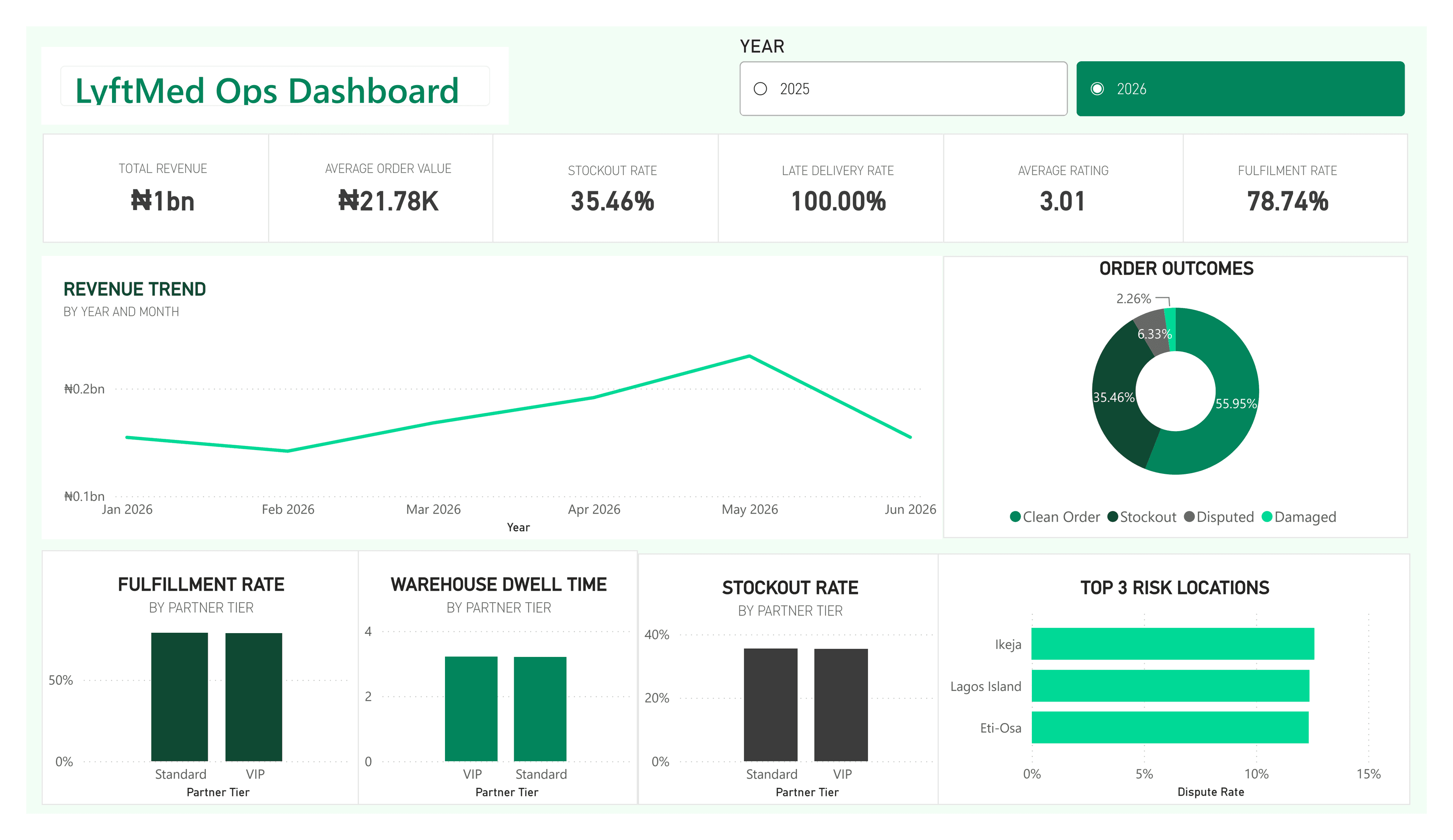
LyftMed Opeations Analysis I: Data Cleaning
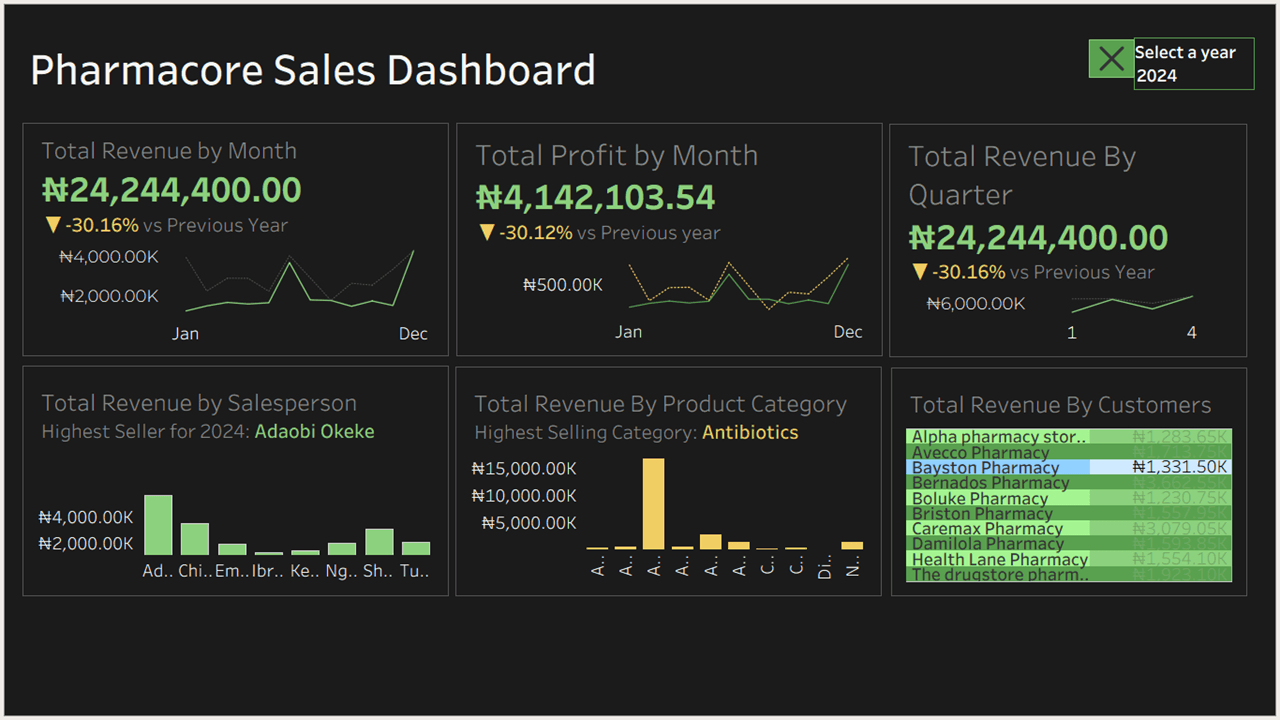
Pharmacy Distribution Visualizaton in Tableau.
Have a data story to shape?
Let's collaborate on a clear analytical product.
Get in touch